Key takeaways
- Compare the best rooted tablets for custom ROMs and customization, with display, memory, storage, battery, and bootloader checks to make before you buy.
A rooted tablet is not bought for its home screen. It is bought for what happens after the first setup, when the owner wants to remove unwanted apps, change system behaviour, run tools that need deeper access, or install a custom ROM that the maker never shipped. A tablet with a bright screen and a fast chip can still be a poor pick if its bootloader cannot be unlocked, its exact model has no community support, or a later update closes the path that made the project possible.

This guide is for hobbyists who want a spare tablet to learn on, owners who want a cleaner system with fewer preinstalled apps, and people who plan to keep a tablet useful with a community build. Every tablet below was chosen from the name and specifications on its Amazon product page, so the hardware details come from the listing itself.
Quick Picks
As an Amazon Associate we earn from qualifying purchases
| Product | Best for | Key spec from title |
|---|---|---|
| Samsung Galaxy Tab A9+ | A large-screen first project with room to grow | 11-inch display, 128GB storage, 8GB RAM |
| Lenovo Tab M11 | A low-commitment starter tablet with a folio case included | 11-inch display, MediaTek Helio G88, 4GB RAM, 128GB storage |
| Samsung Galaxy Tab S9 FE | A sturdier daily tablet with a pen and long battery life | 10.9-inch display, 128GB storage, S Pen included |
How to Choose
Check the exact model before anything else
A tablet family name is not enough when rooting is the goal. One model number can have an unlockable bootloader while another variant of the same tablet, sold in a different region or through a different carrier, cannot be unlocked at all. The Amazon listing gives the model number, the storage and memory configuration, and the connectivity type, and those details should match the device that the rooting community discusses. If the listing shows an international version, a cellular variant, or a bundle, treat that as a separate device and check its support separately. A small difference in the model code can mean a different chip or firmware branch, and discovering that after the tablet arrives wastes the project.
Look for community support tied to that model
Rooting is rarely a single button press. It usually involves a bootloader unlock, a patched boot image, a custom recovery, or a community ROM, and each step depends on others having already worked through the same hardware. Before buying, look for recent guides, forum threads, and ROM builds that name the exact model number from the listing. A tablet with a large, active community is easier to recover when a step fails, because someone else has usually seen the same error and written down the fix. A tablet with no recent activity is a warning sign, even when the hardware looks strong. Community support also matters after the first install, since updates and fixes come from that same group.
Match memory and storage to the work you plan
Rooting does not make a slow tablet fast, and it does not add memory that is not there. A tablet with 4GB of RAM can handle reading, streaming, light browsing, and a modest set of rooted tools, but it will feel cramped if several heavy apps run at once. A tablet with 6GB or 8GB of RAM gives more headroom for multitasking, for running a terminal alongside a browser. Storage matters in a different way. A custom ROM, a backup of the original system, and recovery files all take space, so 128GB of built-in storage is safer than a 64GB model. A microSD slot helps for media and backups, but it does not replace built-in storage for the system itself.
Treat the display, battery, and ports as daily-use decisions
A rooted tablet still has to be pleasant to use every day. An 11-inch screen makes reading long guides, splitting the screen between a terminal and a browser, and watching video more comfortable than a small screen, while a 10.9-inch screen is easier to hold. Battery life matters because rooting work often involves long downloads, backups, and restarts, and a tablet that runs out of charge during a system change can leave the owner with a half-finished device. A USB-C port and quad speakers change how the tablet fits into travel, study, and media use. These details do not decide whether rooting is possible, but they decide whether the tablet stays in daily use after the project is done.
The 3 Best Options
Samsung Galaxy Tab A9+
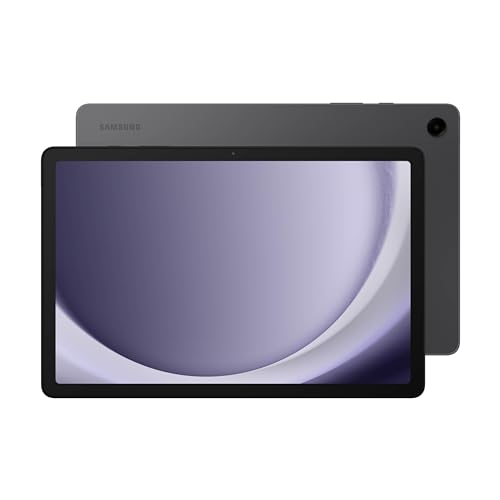
The Galaxy Tab A9+ suits a buyer who wants a roomy tablet for a first rooting project. Its 11-inch display gives enough space to read a guide on one side of the screen while working through settings on the other, and the combination of 8GB of RAM and 128GB of storage leaves room for a system backup, a patched image, and the apps that follow. The Snapdragon 695 chip handles browsing, streaming, and light multitasking, while the quad speakers make the tablet useful for media once the system work is finished. Carry the model number from the listing into any community search, because Samsung variants differ by region and connectivity.
Specs
- Display: 11-inch display
- Storage: 128GB storage
- Memory: 8GB RAM
- Processor: Qualcomm Snapdragon 695
- Expandable storage: microSD card support up to 1TB
- Speakers: Quad speakers
- Model number: SM-X210NZAEXAR
- Colour: Graphite
Best for: A first rooting project on a large, comfortable tablet with generous memory and storage.
Watch out for: Confirm that the exact model number supports bootloader unlocking in your region, since Samsung variants differ and a carrier or regional model may not allow it.
ASIN: B0CLF2DNMV
Lenovo Tab M11
The Lenovo Tab M11 is the lowest-commitment choice here, and that is why it fits a starter project. Its 11-inch display shows a 1920 x 1200 picture, its MediaTek Helio G88 octa-core processor handles everyday apps, and its 4GB of RAM with 128GB of storage is enough for a modest rooted setup with a backup kept on hand. The listing includes a folio case, which protects the tablet in transit, and the 10-hour battery life covers long sessions of reading guides and working through steps. Android 13 is the operating system shown on the listing, so check which community builds match that version before starting.
Specs
- Display: 11-inch display, 1920 x 1200 resolution
- Processor: MediaTek Helio G88 octa-core processor
- Memory: 4GB RAM
- Storage: 128GB storage
- Battery life: Up to 10 hours
- Operating system: Android 13
- Included: Folio case
- Colour: Luna Grey
- Model number: ZADA0043US
Best for: A starter rooting project where a lower outlay and a bundled case matter more than top-end speed.
Watch out for: Check that rooting methods and community builds match the Android version and model number on this listing, since a newer system update can change the steps.
ASIN: B0CQMGKBK9
Samsung Galaxy Tab S9 FE
The Galaxy Tab S9 FE is the pick for someone who wants the rooted tablet to double as a daily driver. Its 10.9-inch display shows a 2304 x 1440 picture, its Exynos 1380 processor drives the system, and its 6GB of RAM with 128GB of storage sits between the other two tablets in this guide. The S Pen comes in the box, which suits note-taking and marking up documents, and the 8,000 mAh battery is listed for up to 18 hours of use. The listing also shows an IP68 water and dust resistance rating and microSD expansion up to 1TB, which add durability and storage headroom for backups and media.
Specs
- Display: 10.9-inch display, 2304 x 1440 resolution
- Processor: Samsung Exynos 1380
- Memory: 6GB RAM
- Storage: 128GB storage
- Battery: 8,000 mAh battery, up to 18 hours
- Rear camera: 8 MP rear camera
- Included: S Pen
- Durability: IP68 water and dust resistant
- Expandable storage: microSD card support up to 1TB
- Model number: SM-X510NZAAXAR
- Colour: Gray
Best for: Daily use with a pen, a sharper display, and a long battery life alongside a rooting project.
Watch out for: Verify bootloader unlock support for the exact model number and software version before buying, since a later update can remove or change the unlock path.
ASIN: B0CCX11JT6
Which One Fits Your Situation
You want to learn rooting on a spare tablet
Pick the Lenovo Tab M11. Its lower commitment makes it easier to accept the risks that come with unlocking a bootloader, and its 11-inch display is large enough to follow guides without squinting. Keep a backup of the original system before changing anything, and use the folio case to protect the tablet while it moves between rooms. If the project stalls, the tablet still works well for reading and streaming, so the time spent learning is not wasted.
You want one tablet for tinkering and everyday media
Pick the Samsung Galaxy Tab A9+. Its 8GB of RAM and 128GB of storage give more room for multitasking and for keeping a backup alongside everyday apps, and its large display and quad speakers suit video and split-screen work. Check the model number against community guides first, then set aside time for a full backup before unlocking anything. This is the most balanced choice when the tablet will not sit on a shelf after the project ends.
You want a pen, a sharper screen, and longer battery life
Pick the Samsung Galaxy Tab S9 FE. Its 2304 x 1440 display, included S Pen, and battery listed for up to 18 hours make it the strongest daily companion of the three, and its 6GB of RAM handles note-taking alongside a browser without constant reloading. Confirm the unlock path for the exact model number, and keep the original firmware files safe so the tablet can be restored if a community build does not suit your needs.
You want to keep the tablet useful for years
Pick the Samsung Galaxy Tab A9+ if media and multitasking matter most, or the Samsung Galaxy Tab S9 FE if a pen and a sharper display matter more. Both have 128GB of storage and microSD expansion up to 1TB, which leaves room for backups, media, and system images. Whichever one you choose, write down the model number, software version, and steps you followed, because that record makes a later restore or fresh install straightforward.
Common Mistakes
- Buying by family name alone and discovering that the exact model number has a locked bootloader or no community support.
- Starting without a full backup of the original system, so a failed step leaves no clean way back.
- Choosing a tablet with too little memory or storage for the ROM, the backup, and everyday apps together.
- Ignoring the software version on the listing and following a guide written for an older system.
- Unlocking the bootloader without reading what it changes, including warranty cover, payment apps, and streaming apps that check device status.
Frequently Asked Questions
Can any Android tablet be rooted?
No. Rooting depends on the exact model, the bootloader, and the software version, not just on the brand or the Android name. Some tablets allow the bootloader to be unlocked with an official process, while others keep it locked for every variant. Before buying, check that the model number on the Amazon listing has a documented unlock path and recent community activity tied to that same model.
Does rooting void the warranty?
Unlocking the bootloader usually affects warranty cover, and makers often treat an unlocked device differently from a sealed one. The exact effect depends on the maker, the region, and the fault involved, so read the warranty terms for the model you buy. Keep the original purchase record and the model number, and understand that returning a modified tablet to its original state does not always restore the original warranty position.
What should I back up before rooting a tablet?
Back up files, photos, app data, and account details first, then back up the original system if the tools for your model allow it. Keep that backup on a separate device or card, not only on the tablet itself, because a failed system change can make the tablet storage unreadable. Note the model number, software version, and steps followed, so a restore does not depend on memory alone.
Is a custom ROM the same as rooting?
No. Rooting gives deeper access to the existing system, while a custom ROM replaces the system itself with a community build. Some owners root and keep the original system, others install a custom ROM after unlocking the bootloader, and some do both in sequence. Each path has its own risks, and the right choice depends on whether you want small changes to a familiar system or a completely different one.